Blog
March 26, 2026
Tips for Troubleshooting Wi-Fi Issues
Your Wi-Fi worked fine yesterday. Today, it won't load a single webpage. Or maybe it's been creeping slower for weeks, buffering through every video call and streaming session until you're ready to throw the router out the window.
Wi-Fi problems slow you down and disrupt the way your household functions. Whether you're working remotely or helping kids with online schoolwork, a stable internet connection is as essential as running water today. The good news is that most common Wi-Fi problems have simple fixes you can handle yourself. This guide walks you through practical, non-technical troubleshooting steps to get your connection back on track without waiting on hold for customer support.
Why Does Your Wi-Fi Keep Dropping? Understanding the Root Causes
Before you can fix a dropping connection, you need to understand what's interfering with your signal. A dropping connection rarely happens for just one reason. Instead, it's usually a combination of factors working against your router. Identifying the root cause helps you troubleshoot more effectively and avoid wasting time on fixes that won't help your specific situation.
Here are the main culprits behind why your Wi-Fi keeps dropping:
- Device overload: The average U.S. household with an internet connection has roughly 17 connected devices. Every smartphone, tablet, smart TV, security camera and voice assistant pulls bandwidth from your router. When too many devices compete for the same connection, they essentially choke the router's capacity, causing slowdowns and random disconnections.
- Physical obstructions: Wi-Fi signals struggle to pass through thick plaster walls, brick, concrete and large metal appliances like refrigerators or filing cabinets. If your router sits in a closet or behind a heavy bookshelf, the signal may barely reach the other side of your home. The more barriers between your device and the router, the weaker the connection becomes.
- Excessive distance: The further a device is from the router, the weaker the signal gets before it eventually drops entirely. If you're trying to work from a home office at the far end of the house while the router sits in the basement, distance alone can cause constant disconnections.
- Outdated hardware: Routers generally have a three to five-year lifespan before they start failing to handle modern internet speeds and device loads. If your router is several years old, it may not support the bandwidth demands of today's streaming, video calls and smart home devices. Aging hardware leads to slower speeds and frequent drops.
- ISP outages or throttling: Sometimes the issue isn't inside your house at all. Regional outages, scheduled maintenance, or internet service providers throttling speeds during peak usage hours can all cause connection problems. After troubleshooting your own equipment, it's worth checking whether your provider is experiencing service disruptions.
How to Fix Slow Wi-Fi
Now that you know what causes dropped connections, here's your immediate action plan to get your internet flowing again.
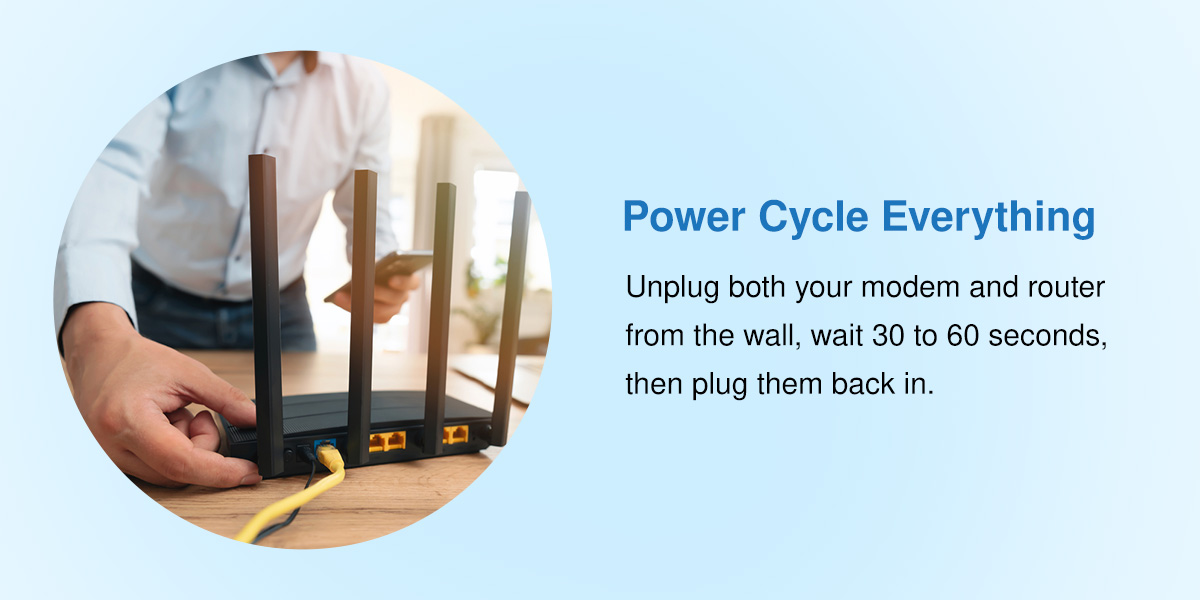
Power Cycle Everything
Unplug both your modem and router from the wall, wait 30 to 60 seconds, then plug them back in. This simple restart often resolves temporary glitches and gives your equipment a fresh start. Wait a few minutes for both devices to fully reboot before testing your connection. This step alone fixes many common connectivity issues.
Check the Router Lights
Most routers have indicator lights that tell you whether they're receiving a signal from your internet provider. Look for solid green or blue lights rather than blinking red or amber. If the lights indicate a problem, the issue may be with your provider's service rather than your equipment. Check the user manual for more router troubleshooting tips.
Reposition Your Router
Move your router to a central, elevated location in your home. Keep it out of closets, off the floor and away from large metal appliances or thick walls. An open, central spot gives the signal the best chance to reach every corner of your house.
Check for Frequency Band Congestion
Most modern routers broadcast on two bands — 2.4 GHz and 5 GHz. The 5 GHz band offers faster speeds but shorter range, while the 2.4 GHz band offers slower speeds but reaches further. If you're close to the router and need speed, connect to the 5 GHz band. If you're farther away and need the signal to reach across the house, switch to 2.4 GHz.
Inspect Your Cables
Check all physical Ethernet and coaxial cables for pinches, sharp bends, frayed ends or loose connections. A damaged cable can disrupt data flow just as easily as a faulty router. Replace any cables that look worn or aren't firmly plugged in at both ends. Even a slightly loose connection can cause problems.
Run a Proximity Speed Test
Stand right next to your router and run a speed test on your phone or laptop. Then walk to the area where your connection usually drops and run another test. If speeds are strong near the router but weak in the problem area, you're dealing with a range issue rather than a provider speed problem. This tells you exactly where to focus your fix.
Common Wi-Fi Problems and Solutions Beyond the Router
If your router seems fine but you're still experiencing issues, the problem might be network management or your home's layout. Here's how to address these less obvious culprits.
Eliminate Idle Connected Devices
Smart TVs, tablets and smartphones run background updates and cloud syncing even when you're not actively using them. These processes quietly drain bandwidth and slow down your connection. Streaming video requires robust bandwidth, and if multiple devices are pulling data in the background, you'll see buffering and lag on the devices you're actually trying to use.
Disconnect any device that doesn't need to be online, or enable network priority settings to ensure your most important devices get bandwidth first. Many routers now include quality-of-service features that let you prioritize video calls or gaming over background downloads.
Addressing Dead Zones in Large or Older Homes
Large properties and homes with thick brick or plaster walls create natural dead zones where Wi-Fi signals can't reach. A single router may cover 1,500 square feet in an open floor plan, but that range shrinks dramatically when signals have to pass through multiple walls or floors.
Mesh systems use multiple access points to push the signal into distant rooms, basements and even outdoor spaces. Unlike traditional range extenders, mesh systems create a seamless network where your device automatically connects to the strongest signal as you move through your home. Consider a Wi-Fi extender solution if you need coverage in a backyard, garage or detached structure.

How to Fix Slow Wi-Fi Permanently With Highline Internet
Troubleshooting Wi-Fi comes down to proper router placement, up-to-date equipment and enough bandwidth for all your devices. If you've worked through the troubleshooting steps and your Wi-Fi still struggles, your home has likely outgrown your current internet setup.
Highline Internet delivers fiber-optic internet built to handle today's connected households. Our Calix Wi-Fi 6 routers support up to 250 devices with whole-home coverage, and our white-glove installation ensures your router is positioned perfectly from day one. We're local, we're here to help and we're committed to giving you the ultimate Wi-Fi experience.
Contact us today to learn how Highline Internet can deliver the fast, reliable connection you deserve.