Blog
January 26, 2026
Dropped Calls at Home? Wi-Fi Calling Can Solve Spotty Cellular Coverage
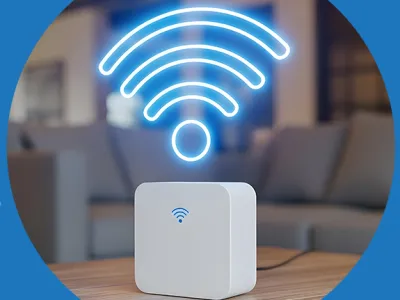
If you live in a rural area where reliable service is scarce, Wi-Fi calling is a viable option for maintaining a connection. Wi-Fi calling maintains clear communication without the disruption of spotty cellular service.
Explore all the benefits of using Wi-Fi calling and why boosting your Wi-Fi connection is essential.
What Is Wi-Fi Calling?
Simply, Wi-Fi calling allows you to make calls with a broadband connection. Instead of relying on 4G or 5G rural cellular coverage, a strong and reliable internet connection keeps you connected without having to navigate patchy reception. Here are the benefits of Wi-Fi calling:
- No mobile signal: An excellent internet connection is all you need to make Wi-Fi calls. You can say goodbye to wandering around your home to find an extra bar before making a call. A consistent internet connection saves you stress and time.
- Built-in system: Because the only thing required is a strong internet connection, you don’t need to worry about anything else. There’s no need to download software or an app — once a good connection is in place, enable the settings, and you’re good to go.
- Zero added cost: Every time you make a Wi-Fi call, you are using your mobile usage allowance. Although policies may vary, your Wi-Fi calling time will likely take minutes from your cellular minutes plan.
How Does Wi-Fi Calling Work?
The technology that allows Wi-Fi calling is Voice over Internet Protocol (VoIP). Particularly if you’re in a rural setting, the technology is life-changing to keep your calls clear. Here’s an overview of the Wi-Fi calling process:
Connecting Your Call
Once you activate Wi-Fi calling on your phone, your home internet connection receives a digital transmission of your voice data. Your mobile coverage provider then receives the digital data, and the calls you make are routed via your network.
The recipients of your Wi-Fi calls will believe you’re making a regular phone call.
User Experience
Setting up Wi-Fi calling does not change your phone number or other components. Making a call using Wi-Fi still allows you to access your regular contacts and phone dialer pad. The call experience is based on your connection strength. Your phone works to locate the strongest connection — whether it’s Wi-Fi or cellular coverage — to make a call.
Home Wi-Fi Quality
A dependable broadband connection is the backbone of a high-quality Wi-Fi call. Weak coverage and slow speeds will make Wi-Fi calling a disappointing alternative to relying on poor mobile service. Ensuring your Wi-Fi connection is strong and reliable throughout your home saves the frustration of dropped calls at home.
Emergency Situations
It may be a good idea to update your home address with your mobile provider. Making an emergency call with cellular coverage automatically transmits location data, thanks to the assistance of cell towers and the Global Positioning System (GPS). By ensuring your address is correct, Wi-Fi calling can transport your registered address in emergency situations.
The Problem With Wi-Fi Dead Zones
A Wi-Fi dead zone indicates a weak wireless signal within a particular area of your home. Your Wi-Fi call may come to an abrupt end, or the quality may be distorted. With an unreliable broadband connection, you face significant coverage issues.

Wi-Fi dead zones are prevalent in rural areas. Historically, rural locations have struggled with Wi-Fi connection and strength.
Sticking to Weak Signals
Although mobile devices automatically attempt to find the strongest connection, they don’t always locate the preferred connection instantly. Your connection may be unstable at weak points, which can be a problem when making calls in rural areas.
Even when you move to another room to try to gain a better connection, your connection may stick to the initial weak connection point.
Good Coverage Is Essential
Improving Wi-Fi dead zones helps build a strong connection, allowing you to enjoy disruption-free Wi-Fi calling. A few options are available to eliminate uninterrupted coverage, such as switching to a mesh network, using Wi-Fi extenders, and placing your router somewhere else.
Adding one or two of these methods will likely broaden your internet connection for reliable use in all areas of your home.
Boost Your Router for Strong Wi-Fi Calling
Seeking the right internet connection setup for your home is paramount. Upgrading your Wi-Fi will feel like having your own personal cell tower with a trustworthy connection for Wi-Fi calling. Proper integration is more involved than a technician dropping off a stand-alone router:
- Additional mesh components: Using a few extras, such as Wi-Fi extenders, in conjunction with your main router, helps extend your Wi-Fi connection across all areas of your home. Setting up Wi-Fi extenders eliminates the risk of experiencing dead zones and allows you to enjoy a reliable connection in your yard and basement.
- Finding the best placement: The placement of both your router and Wi-Fi extenders is crucial for the optimal experience. A technician will be able to locate the optimum locations in your home, ensuring all corners of your home offer a reliable connection.
- Create smoother roaming: Wi-Fi extenders around your home allow your devices, including mobile phones and laptops, to detect a strong signal without needing to manually change connections. You can make Wi-Fi calls from one room to another with confidence, without any technical issues.
- Continuous monitoring: Evaluating your broadband usage through your provider’s app allows you to track Wi-Fi strength and overall performance. Monitoring the Wi-Fi performance allows you to rectify potential connectivity issues early.
Steps to Enable Wi-Fi Calling on Your Device
Most smartphones can enable Wi-Fi calling, whether you have a Samsung S10, an iPhone 8, or an iPhone 12. After you enable Wi-Fi calling through your device’s settings, you can easily make Wi-Fi calls without having to worry about patchy cellular service again:
Android
For Android smartphones, follow the steps below to set up Wi-Fi calling. The process may be different depending on your phone brand, such as Google or Samsung. However, the steps will be similar across all Android phones:
- Go to “Settings.”
- Find the “Connections” or “Network and Internet” option.
- Locate “Wi-Fi Calling.”
- Switch the “Wi-Fi Calling” toggle on.
Apple
If you have an Apple device, follow the process below to enable Wi-Fi calling. A few menu names may be different due to software and model updates:
- Find the “Settings” app.
- Locate the “Cellular” option.
- Select “Wi-Fi Calling.”
- Switch on “Wi-Fi Calling on This iPhone.”
For Apple and Android, you may be asked to confirm or update your address details for emergency calls.
Say Goodbye to Dropped Calls at Home
Securing a reliable and strong home connection makes your life easier, from remote working to catching up with friends and family. Highline Internet provides a speedy internet connection with essential tools, such as Wi-Fi extenders, to help you make calls confidently around your home.
Ready to gain a fast connection for your home? Start by checking the availability in your area to unlock a smoother internet connection. Contact our friendly team with any questions.